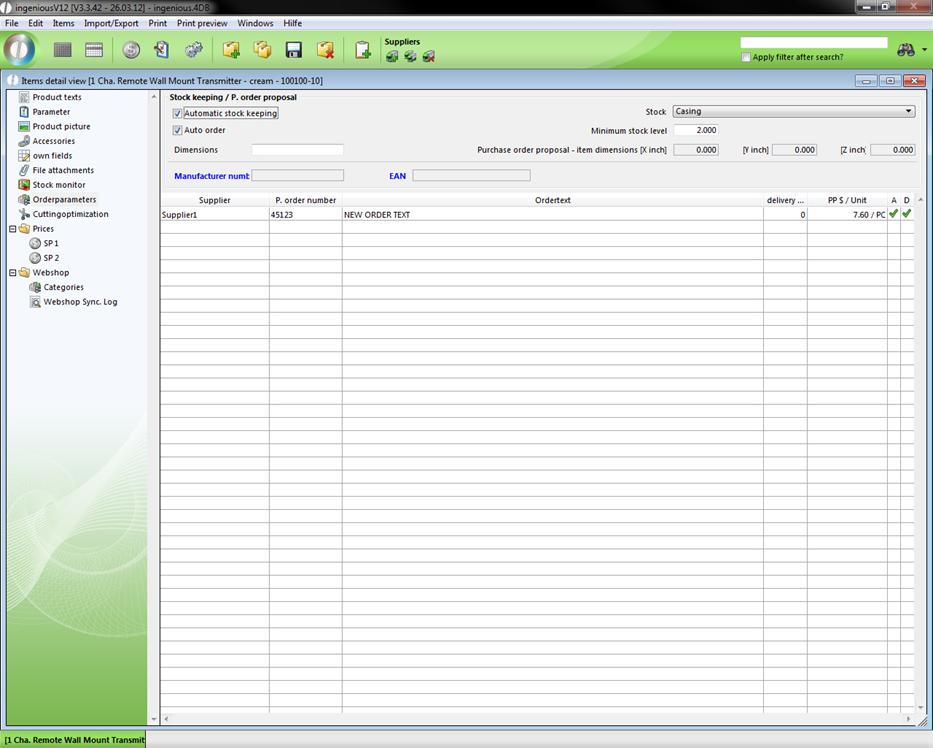
In the area, “Stock keeping/Purchase order proposal”, you can specify, for example, whether the inventory management (checkmark next to “Automatic stock keeping”) and the order (checkmark next to “Auto Order”) for this item are to be automatically made by Ingenious.V12.
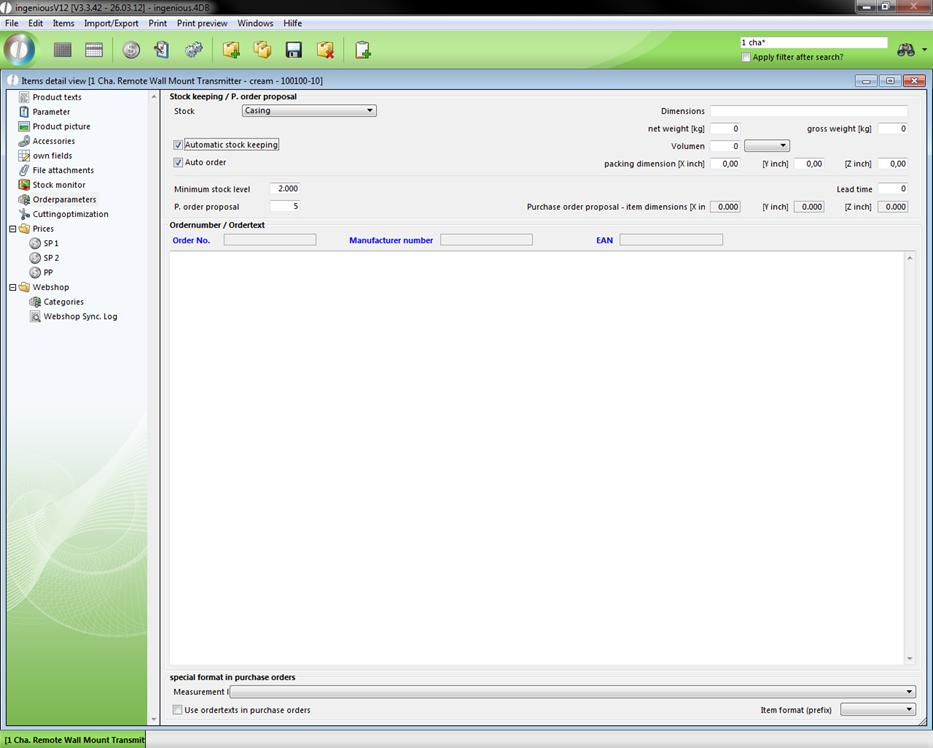
View of the area, “Stock keeping/Automatic Ordering”
If this (as shown in the above illustration) is the case, the remaining fields should also be filled out with “Inventory”, “Minimum stock”, “Purchase order proposal”, and the respective fields for the item dimensions. In the selection list, “Stock”, all established Ingenious.V12 inventory locations are available. A new assembly of inventory occurs in the column, “Selection lists” of the of the program settings. If the stock is reduced during a more active “Automatic stock keeping” and “Auto order” under the field, “Minimum stock” fixed value; Ingenious.V12 automatically prepares the order of the item at the height of the value registered in the field “Purchase order proposal”. Thereby consideration is given to the necessary dimensions of the item, which are to be registered in the fields “Purchase order proposal item dimensions [X cm]”, “[Y cm]” and “[Z cm]”. Moreover, you can specify the order text and format the measurement row and the position format prefix by selection.
In the group „Ordernumber“ you can set the order number of an item and create an order text, which will be used in the document as the item description, when you check the field “use ordertexts in purchase orders”.
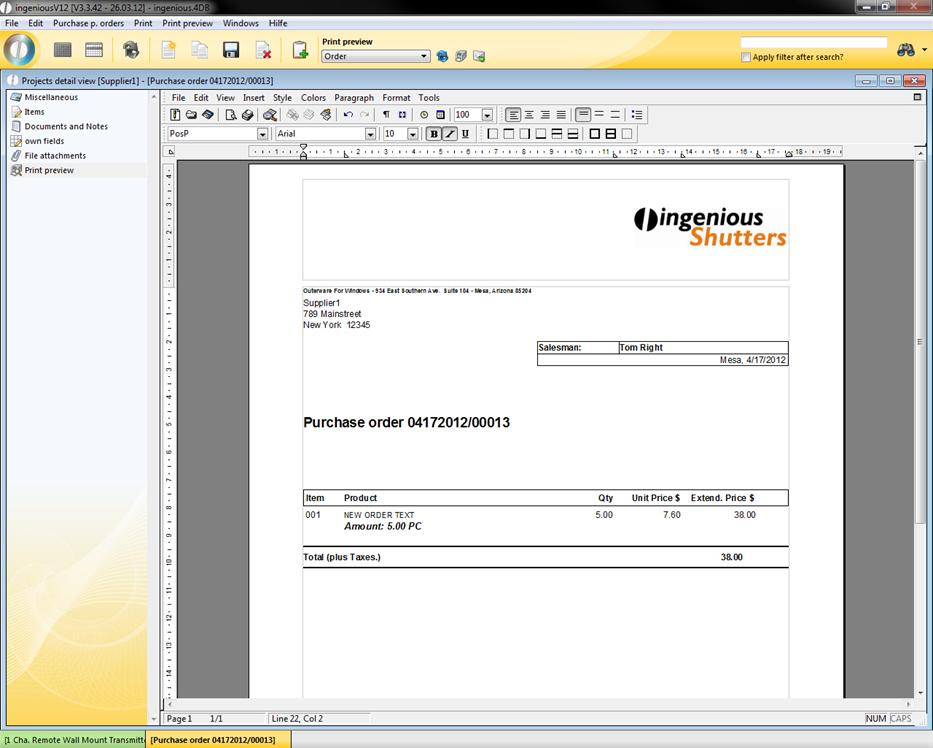
Additionally you can set a different measurement line in the “special format in purchase orders” area, which will be used in purchase order documents.
Multi suppliers
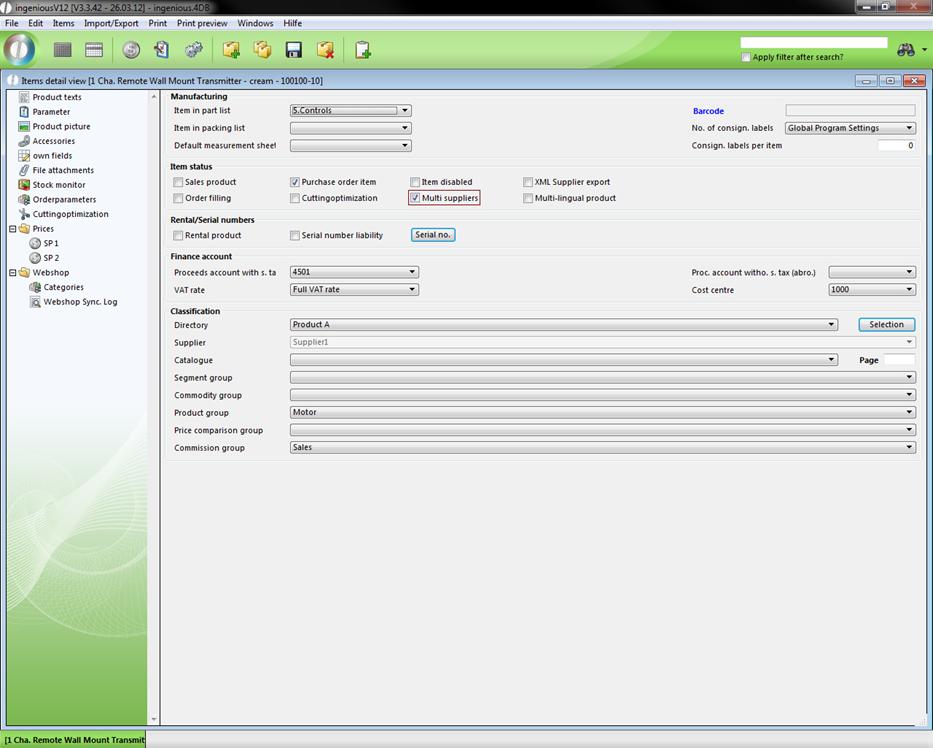
When a company obtains items from multiple suppliers, this can be mentioned at the item in multi suppliers in ingenious.V12. You just have to check the field “multi suppliers” in the parameter category.
Now the purchase price can be found in the category “order parameter” and there is also displayed automatically the default supplier.
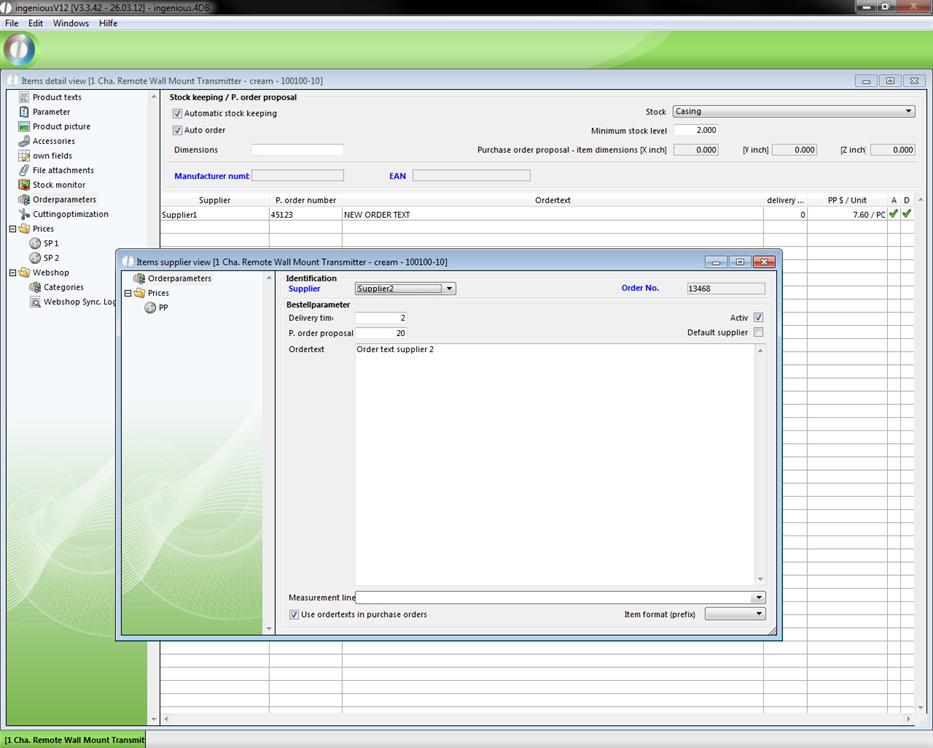
With the help of the button  a new supplier can be added. In order to do this you only have to choose the desired supplier and set the order number, the delivery time in days, the purchase order proposal, the individual order text and the measurement line.
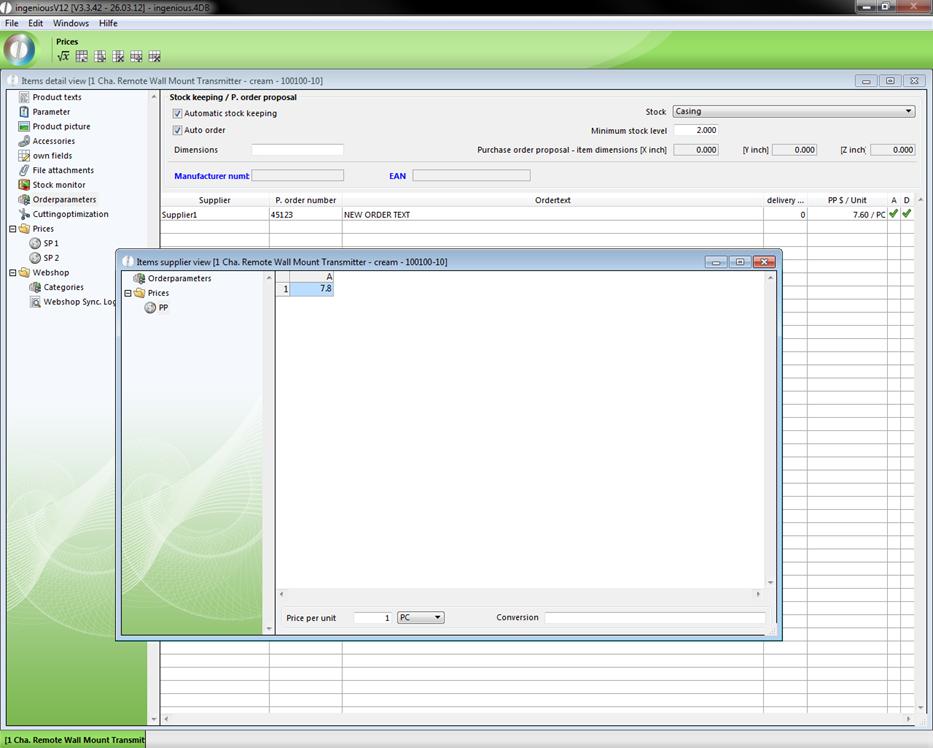
In addition you lodge in prices the purchase price for the item according to this supplier.
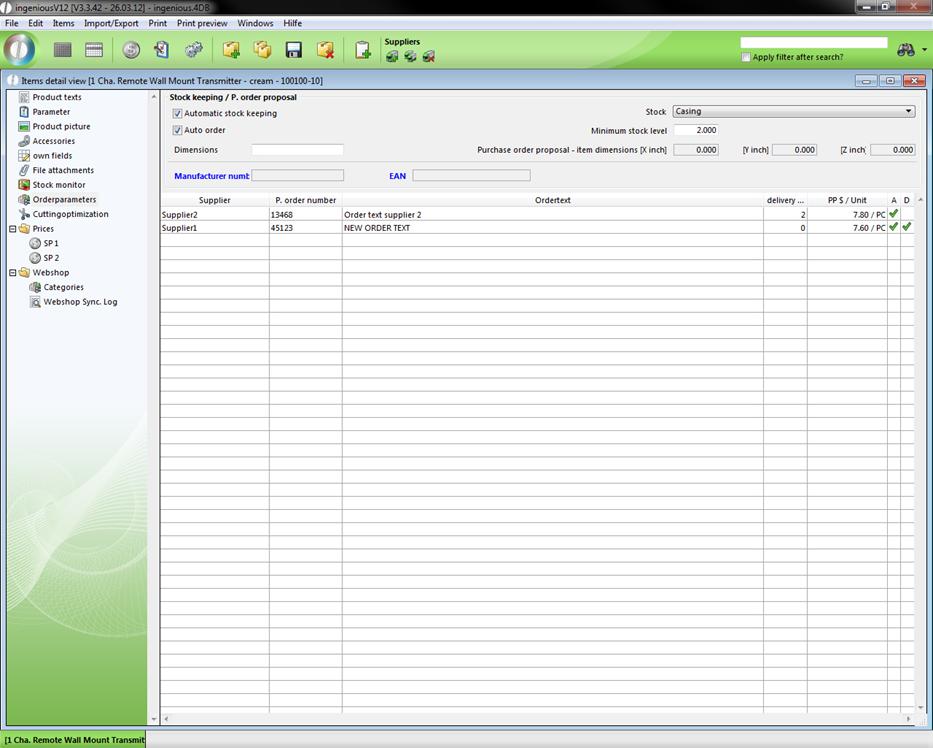
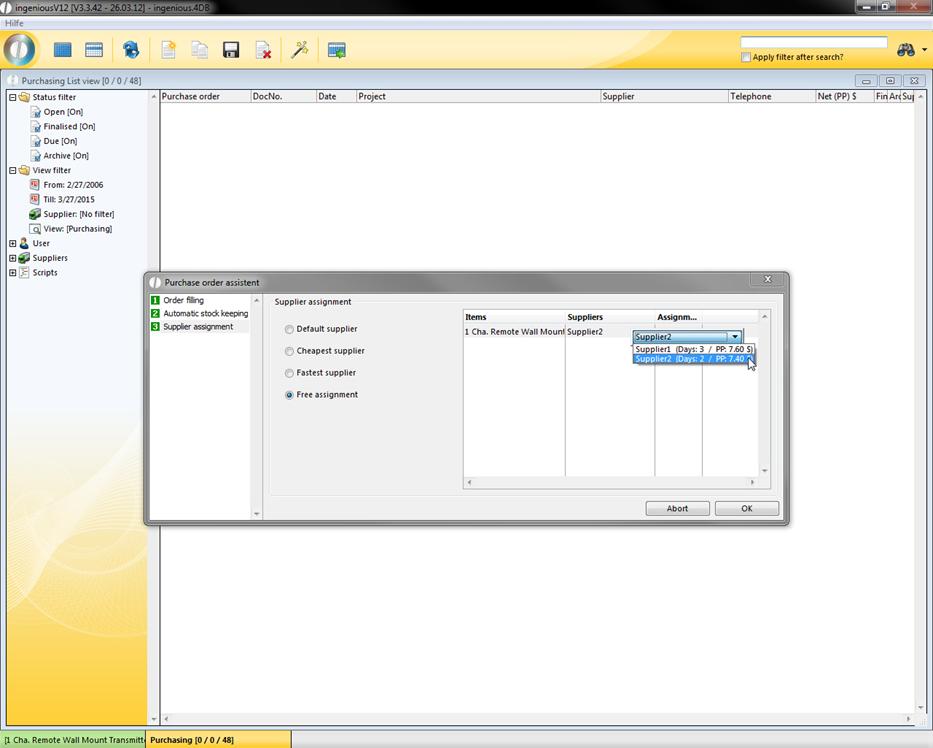
For example, this feature is really helpful for the purchase order assistant in the “Purchasing” module, where you can choose from the created suppliers (condition: “automatic stock keeping” of the item, see 4.4.1.1), like in the following example.
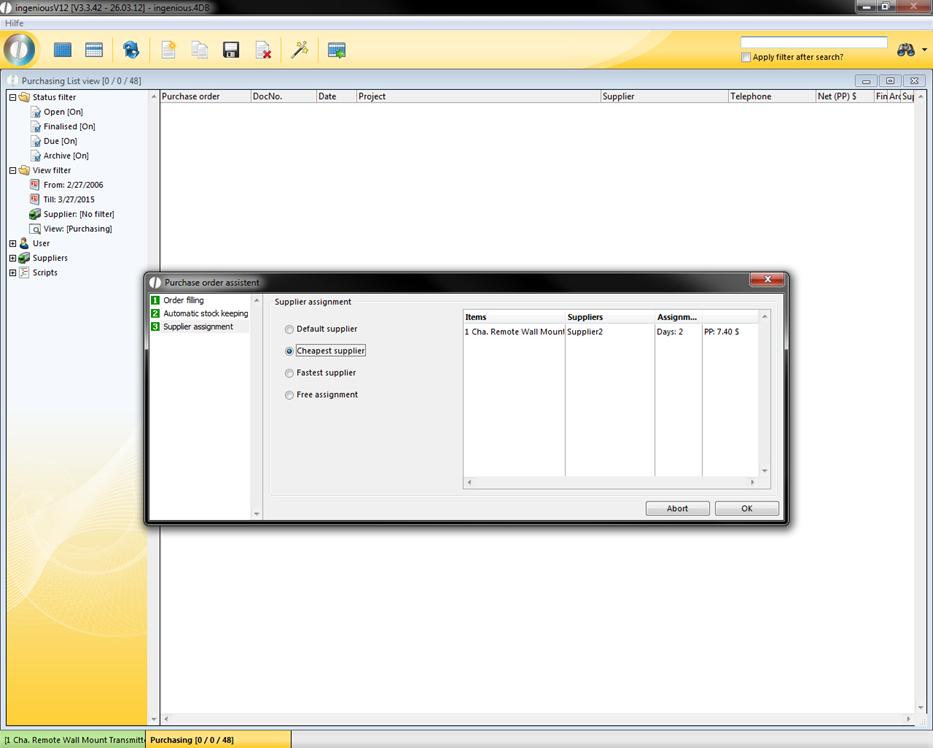
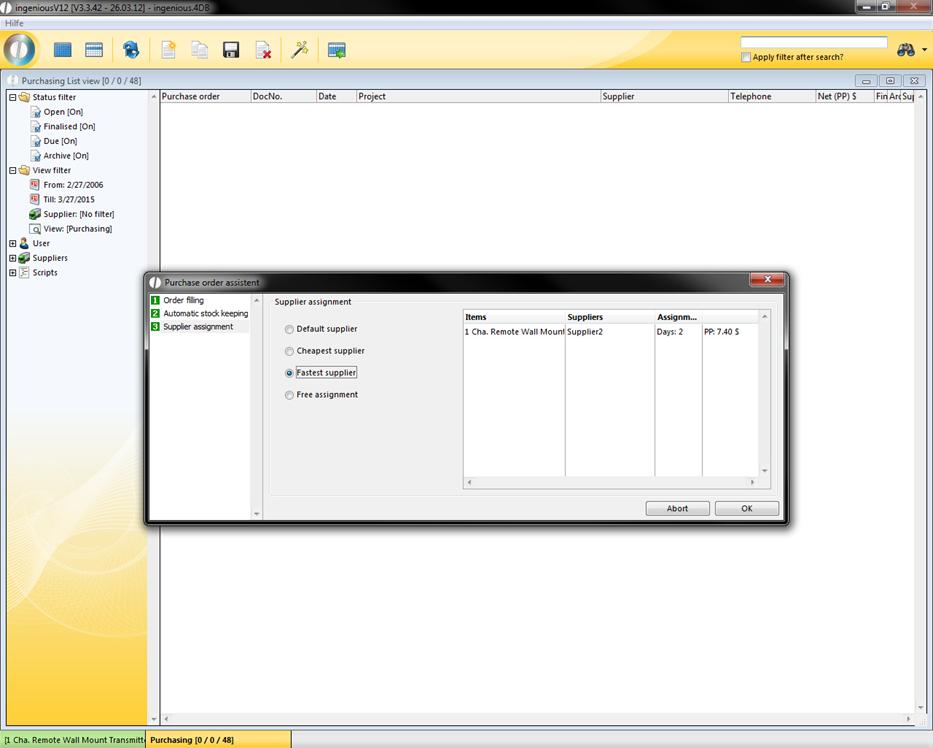
If you select “free assignment” you can choose between all created suppliers by double clicking the line.